 Docs
DocsServer
Storage & volumes
See every disk on the droplet, add DigitalOcean volumes, and move all your projects onto one when the droplet's own disk gets tight, without changing a single path.
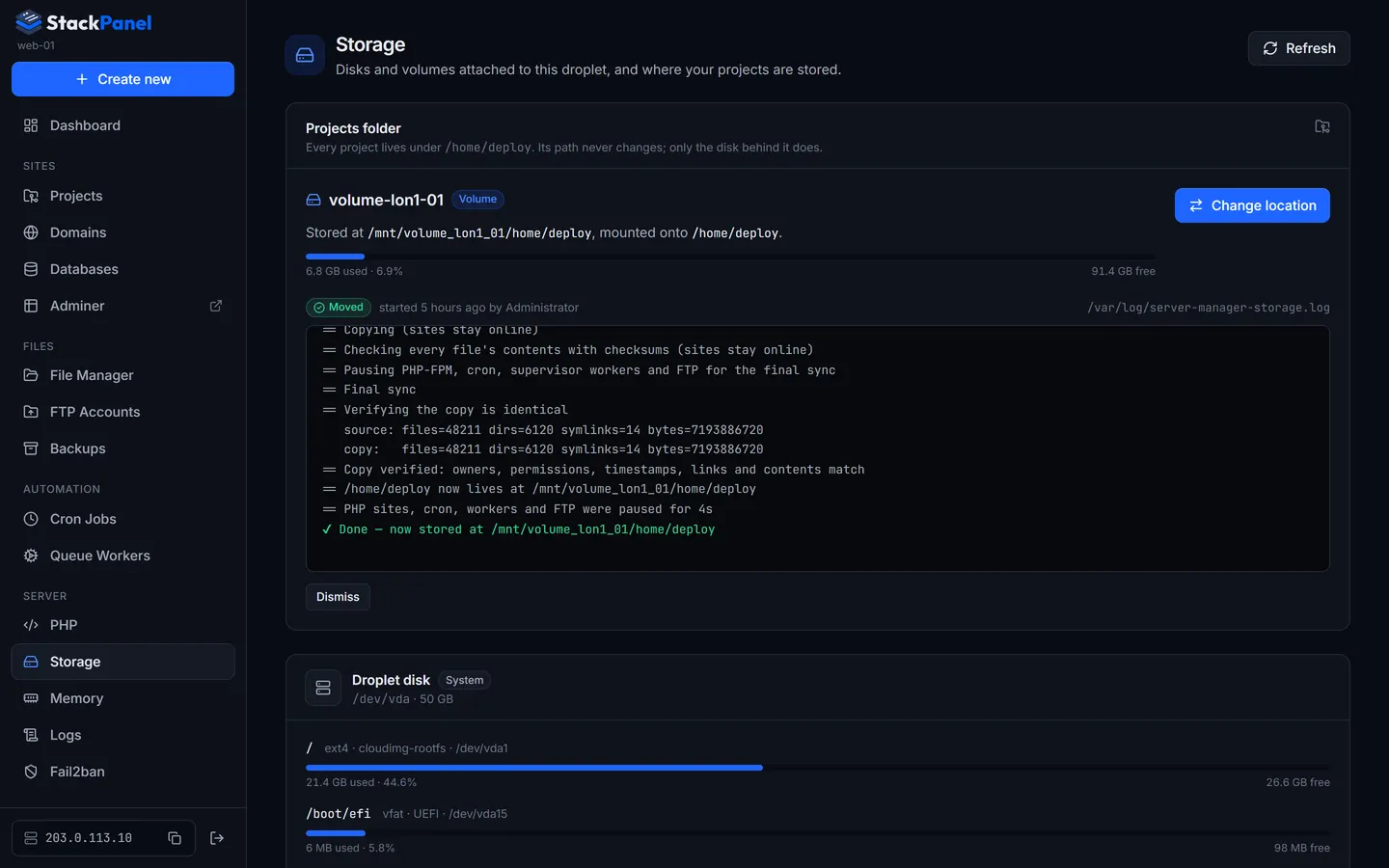
Storage shows every disk on the droplet: the droplet's own disk (with its partitions) and any attached DigitalOcean volumes, each with its filesystem, where it's mounted and how full it is. Everyone can see this page; formatting, mounting and moving the projects folder are for the main administrator.
Adding a volume
- Create and attach it in DigitalOcean
Volumes → Create Volume, pick this droplet. Automatically format & mount does everything for you; with Manually format & mount use the next two steps. Then click Refresh on the Storage page.
- Format (new, empty volumes only)
Choose ext4 (recommended) or xfs and type the volume name to confirm. Volumes that already have a filesystem or partitions can't be formatted from the panel, so existing data can't be wiped by accident.
- Mount
Mounts it at
/mnt/<name>(e.g.volume-lon1-01→/mnt/volume_lon1_01) and adds it to/etc/fstabwithnofail, so it comes back after a reboot and a detached volume can't stop the droplet booting.
Moving the projects folder
All projects live in /home/deploy on the droplet's disk by default. Move to a volume (or Move projects here on a volume) moves the whole folder: every project, deploy keys and .env files. Change location moves it to another volume or back to the droplet's disk at any time.
The path stays /home/deploy: the folder on the volume (/mnt/<volume>/home/deploy) is mounted onto it. nginx, cron jobs, workers, FTP accounts, new projects and Laravel's storage:link symlinks keep working with no changes.
- Copy
Everything is copied while sites keep running, then every file's contents are checked again with checksums.
- Final sync
PHP-FPM, cron, queue workers and FTP are paused (static files are still served) for a last sync. The panel then checks the copy is identical: owners, permissions, timestamps, symlinks, hard links and file counts and sizes. Usually this takes seconds. The log shows exactly how long.
- Switch and restart
The folder is switched over and everything is started again. If anything goes wrong before or during the switch, the old layout is put back and nothing changes.
Deploys, backups and file manager changes wait while a move runs. The previous copy is kept (listed under Old copies) until you delete it, so you can always move back. Delete it once you're happy, to free the space. You can't unmount a volume while the projects folder or backups are stored on it.
The move fails safely if something keeps the folder busy, e.g. an SSH session sitting in a project directory. The log lists the processes; close them and try again.