 Docs
DocsUsing the panel
Databases
Create a MySQL database, its user, a strong password and the right grants in one wizard, then manage them alongside the project that uses them.
Creating a database
Databases → New database walks through four steps: Name (database and username: letters, numbers and underscores; optionally link it to a project), Credentials (a strong password is generated; regenerate it or type your own), Permissions, and Done, which shows a ready-to-paste Laravel .env block and an Adminer link.
| Permission preset | Grants |
|---|---|
| All privileges | Full control of this database only: right for an application user that runs migrations. |
| Read & write | SELECT, INSERT, UPDATE, DELETE, CREATE, DROP, INDEX, ALTER, temporary tables, locks, references. |
| Read only | SELECT, SHOW VIEW: for reporting tools. |
| Custom | Tick individual privileges. |
Users are created for localhost and 127.0.0.1 only. Remote MySQL access is never opened.
Managing databases
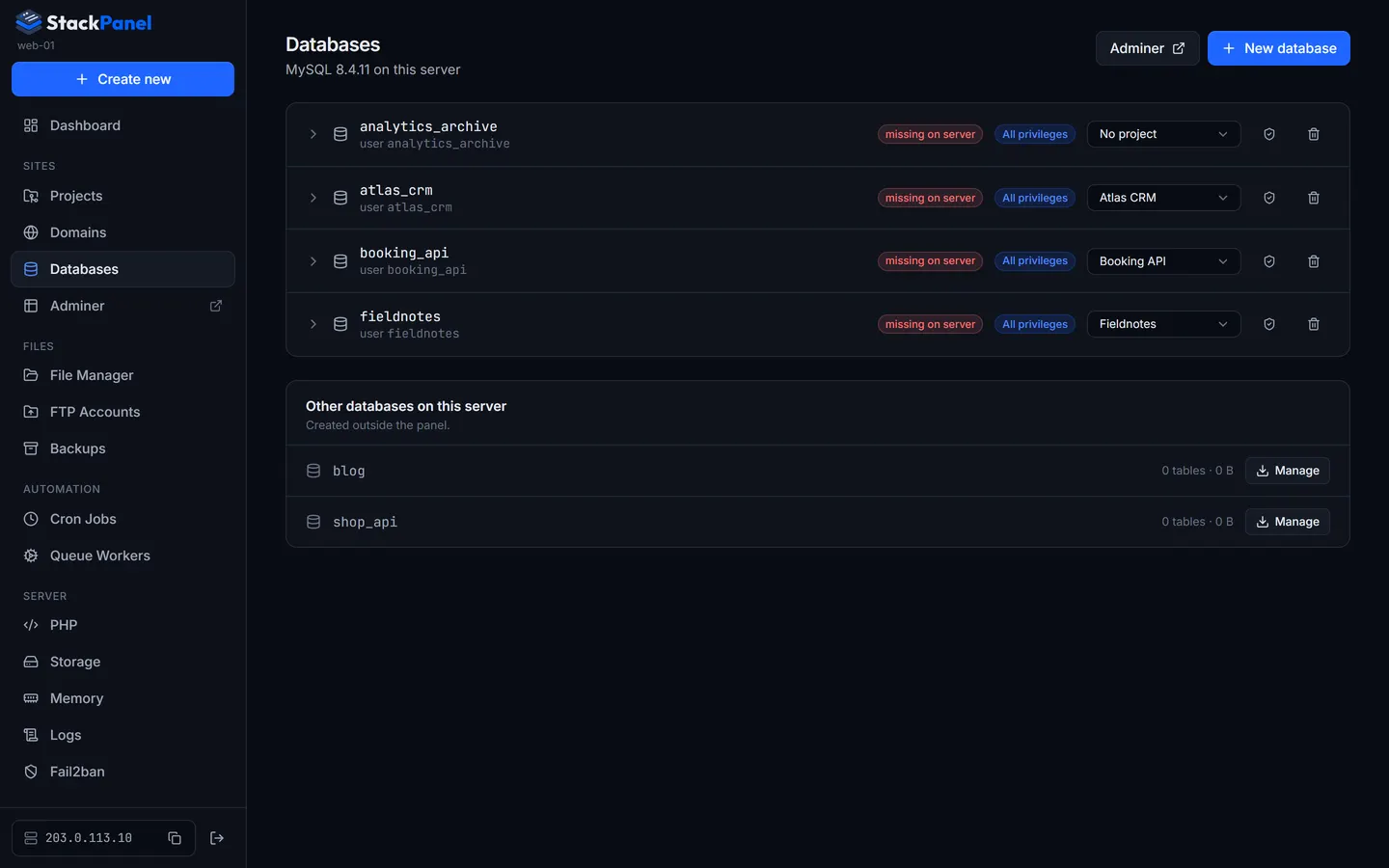
- Expand a database to see its host, port, name and user; reveal or rotate the password. Rotating takes effect immediately, so update the project's
.env. - Change permissions or the linked project from the row.
- Other databases on this server lists ones created outside the panel; Manage brings one under the panel with a dedicated user.
- Drop requires typing the database name. The user is dropped too unless another database uses it.
Adminer
Adminer is at /adminer/ (sidebar link) and only opens when you're signed in to the panel. Links from a database pre-fill the server and username; paste the revealed password to log in.