 Docs
DocsUsing the panel
Dashboard
Everything in the panel is connected: a project knows its domains, database, workers and cron jobs, and each of those screens links back to the project. The Create new button at the top of the sidebar starts any of them from anywhere. The dashboard is where you land.
What's on it
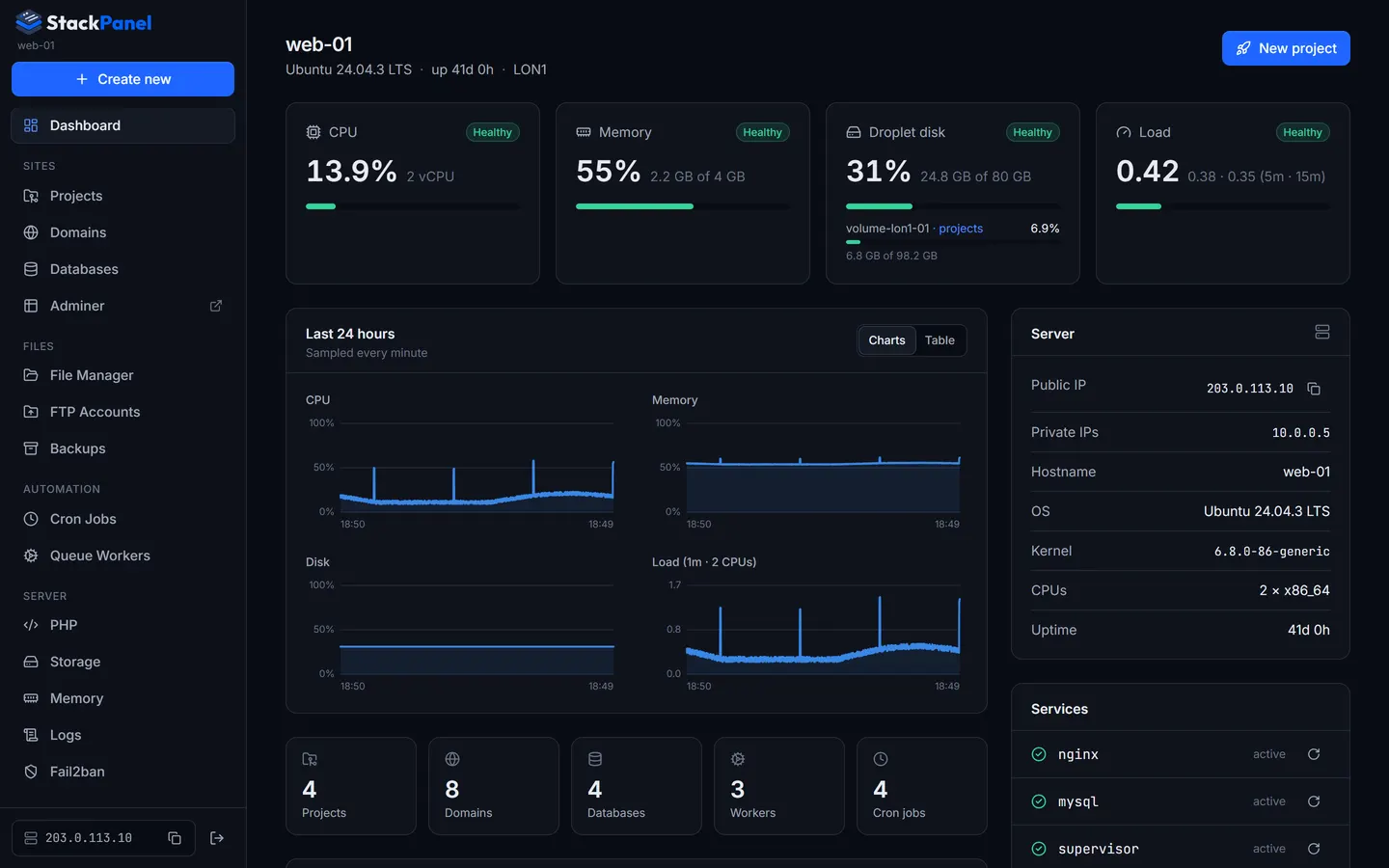
- Needs attention appears at the top only when something is wrong: a failed setup, a domain whose nginx config or certificate failed, a certificate expiring within 14 days, a worker that isn't running, a stopped service, or a missing Let's Encrypt email. Click a row to jump to the fix.
- Usage tiles: CPU, memory, disk and load refresh every 3 seconds. Each tile is labelled Healthy (under 75%), High (75–90%) or Critical (90%+). Load is compared with the CPU count. When volumes are mounted, the disk tile also shows each volume's usage. Click the memory tile for the memory breakdown.
- Last 24 hours: one sample per minute for CPU, memory, disk and load. Hover for exact values; switch to Table for hourly averages.
- Server: public IP (with copy button), private IPs, hostname, OS, kernel, CPUs and uptime. The public IP is also at the foot of the sidebar, next to Sign out.
- Services: nginx, MySQL, Supervisor, cron, fail2ban and each PHP-FPM version, with a restart button.
- Software: installed versions of PHP, nginx, MySQL, Node, Composer, certbot and Supervisor.
Getting around
The sidebar is grouped: Sites (Projects, Domains, Databases, Adminer), Files (File Manager, FTP, Backups), Automation (Cron, Workers), Server (PHP, Storage, Memory, Logs, Fail2ban) and Panel (Users and Settings for the main administrator, your account under your own name, and Documentation). The foot of the sidebar shows the server's IP with a copy button, and Sign out. Create new opens a project, domain, database, cron job, queue worker or FTP account from anywhere.