 Docs
DocsUsing the panel
Backups
Each run makes one bundle per project: the project's files and a dump of every database linked to it. Bundles stay on the server and can be pushed offsite automatically.
How backups work
A bundle is <project>_<date>.zip containing files.zip (the project folder) and databases/<name>.sql.gz for every database linked to the project. Databases that aren't linked to a project are backed up too, into an other_databases bundle. Every panel user can run and configure backups.
Settings
- Schedules: databases and files each have their own schedule: hourly (at a minute past the hour), daily, weekly or monthly at a set time, in server time. For example, databases every hour and files once a week. If both are due at the same minute they go into one bundle; otherwise the bundle holds just that type (
…_database.zipor…_files.zip). A type whose schedule is off only runs from Backup now. - Files: folders to leave out of the files zip (default
vendor,node_modules,storage/logs; those are rebuilt on deploy). Wildcards like*.logwork. - Retention: how many days to keep bundles on this server and, separately, on the external destination (default 7 each). For example, keep 5 days locally to save disk space and 90 days offsite. Older bundles are deleted from each place; the history row stays and shows where the bundle still exists. A push that is still running keeps its local copy until it finishes.
- On this server: the folder bundles are written to (default
/var/backups/server-manager, one sub-folder per project). It can't be a system folder or inside a project. Bundles are always kept here, so they can be downloaded. - External destination (optional): SFTP (password or private key), FTPS or FTP, with host, port, username and a remote folder (a sub-folder per project is created). Use Test connection before saving. Every new bundle is pushed automatically, and the push is shown in the backup's log. Plain FTP isn't encrypted, so prefer SFTP or FTPS. Turn off Verify TLS certificate for FTPS servers with a self-signed certificate.
- Dropbox: backups go into your own Dropbox app's App folder (
Dropbox/Apps/<app name>/). The panel can't see anything else in your Dropbox.
Setting up Dropbox
- Create the app
At dropbox.com/developers/apps click Create app, choose Scoped access and App folder (not Full Dropbox), and give it a name, e.g.
StackPanel Backups. - Permissions
On the app's Permissions tab tick only
files.content.writeandfiles.metadata.read, then Submit. Do this before connecting: the permissions are fixed when you allow access. - Connect
In Backups → Settings → External destination turn on the push, choose Dropbox, and paste the App key and App secret from the app's Settings tab. Click Open Dropbox to allow access, sign in to the account the backups should go to, click Allow, copy the code and paste it back, then click Connect. Codes expire after a few minutes.
- Save and test
Optionally set a folder inside the app folder (empty = the app folder itself), click Save backup settings, then Test connection. Each project gets its own sub-folder.
Disconnect revokes the panel's access and stops pushing; backups already in Dropbox stay. You can also remove access from Dropbox under Settings → Connected apps. Backups count against your Dropbox storage, and old ones are deleted after the retention period.
History
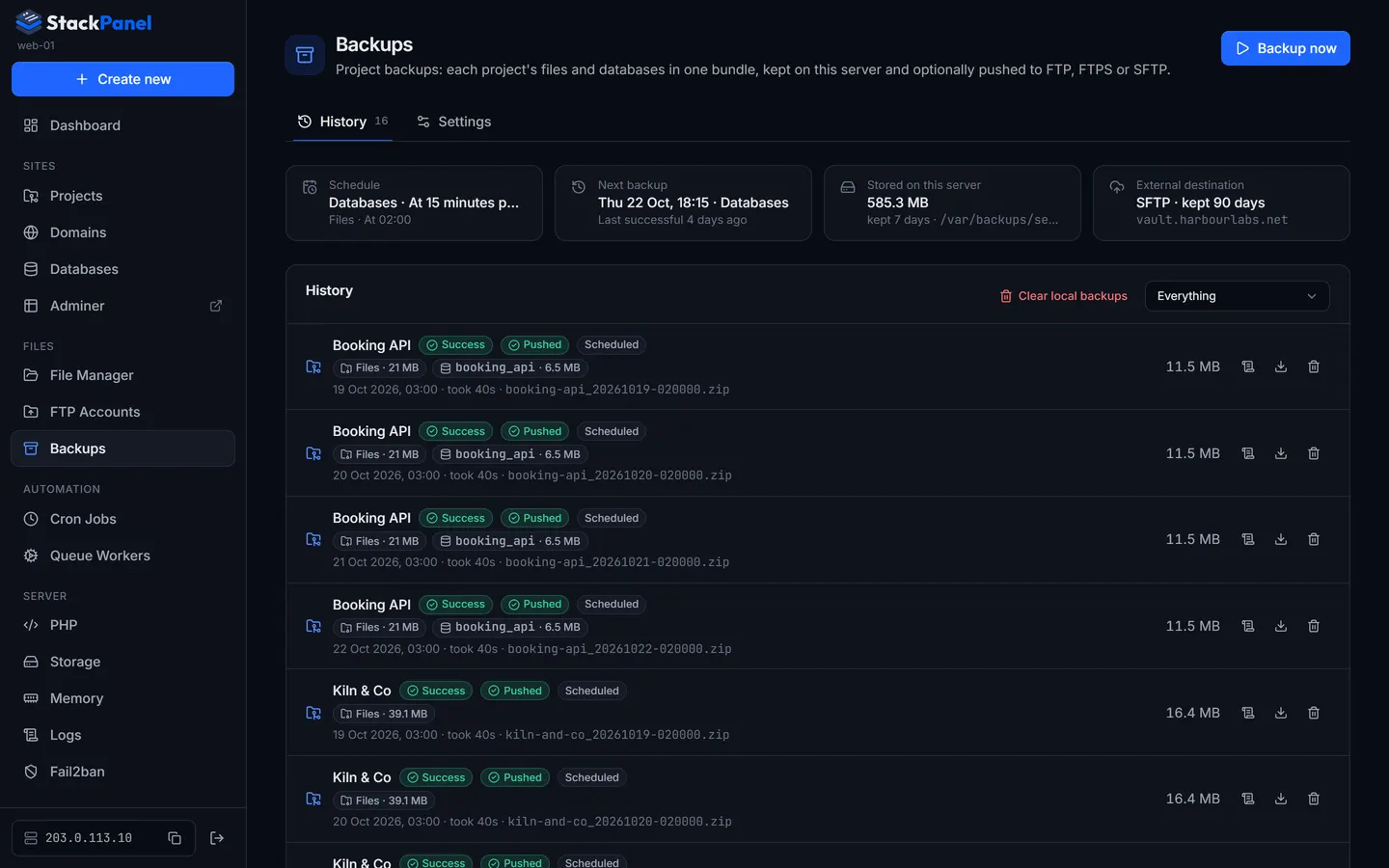
Each backup shows its status, the external push status (Pushed, Push failed…), whether it was scheduled or manual (and by whom), what was captured (files size and each database with its size), the bundle size and how long it took. From a row you can view the log (live while running), download the bundle, retry the push if it failed, or delete it (from this server and the external destination). If the latest backup of anything failed, Backups in the sidebar gets a red dot.
Clear local backups (top of the history) deletes every bundle stored on this server in one go, e.g. to free disk space. The history rows stay, and copies on the external destination are not touched. Backups that are still running or pushing are skipped. If some bundles exist only on this server (never pushed, or no external destination), the dialog says so and asks you to type clear to confirm.
Backup now & restoring
Backup now runs immediately, for all projects or the ones you pick, and for databases, files or both.
Restoring is manual for now: download the bundle, unzip it, and import a .sql.gz with Adminer or:
$ gunzip < db.sql.gz | mysql db