Docs
DocsStart
Installation
From a brand-new droplet to a signed-in panel in about ten minutes. The provision script does the heavy lifting; this page walks through it.
Getting access
StackPanel is available by request and its code lives in a private GitHub repository, SCC-Pro/server-manager. To get started, email info@endor.digital with a little about your setup: how many servers, which provider, and what you host. Once you're approved, the repository is opened to your server with a read-only deploy key, as described in step 1 below.
Keep the key you create on the server: the panel's Update now pulls new versions with the same key later.
Requirements
- A DigitalOcean droplet running Ubuntu 24.04 LTS. 1 GB of RAM works (the script adds swap); 2 GB or more is recommended if you build front-end assets on the server.
- Root SSH access to the droplet.
- Access to your DNS so you can point domains at the droplet's IP.
- Ports
22,80,443and the panel port (default8090) reachable. If you use a DigitalOcean Cloud Firewall, open them there too.
The host runs nginx, PHP-FPM and MySQL directly, not in containers. Only the panel itself runs in Docker. Start from a clean droplet: the script expects to own the nginx and PHP-FPM configuration.
Quick start
-
Give the droplet read access to the repository
Create an SSH key for root on the droplet. Its public key is added to the repository as a read-only deploy key: send it in reply to your access confirmation, or add it yourself under Settings → Deploy keys if you administer the repository.
$ ssh root@YOUR_DROPLET_IP
$ ssh-keygen -t ed25519 -N "" -f ~/.ssh/id_ed25519 -C "root@$(hostname)"
$ cat ~/.ssh/id_ed25519.pub        # this is the deploy key
$ ssh-keyscan github.com >> ~/.ssh/known_hosts
Once the key has been added, check it with
ssh -T git@github.com: it should greet the repository, not say "Permission denied". -
Clone the code
Clone into
/opt/server-manager:$ git clone git@github.com:SCC-Pro/server-manager.git /opt/server-manager -
Run the provision script
Choose the PHP versions you need and the email for signing in and Let's Encrypt notices:
$ cd /opt/server-manager
$ bash provision/provision.sh --php "8.3 8.4" --email you@example.com
It takes 5–10 minutes. Every option is described in Provision script. A full log is written to
/var/log/server-manager-provision.log. -
Note the credentials
At the end the script prints the panel URL, email and a generated password, and saves them to
/root/server-manager-credentials.txt(readable by root only). Delete that file once you've stored the password somewhere safe.━━━━━━━━━━━━━━━━━━━━━━━━━━━━━━━━━━━━━━━━━━━━━━━━━━━━ Provisioning complete Panel http://203.0.113.10:8090 Email you@example.com Password hT4n…(20 characters) -
Sign in
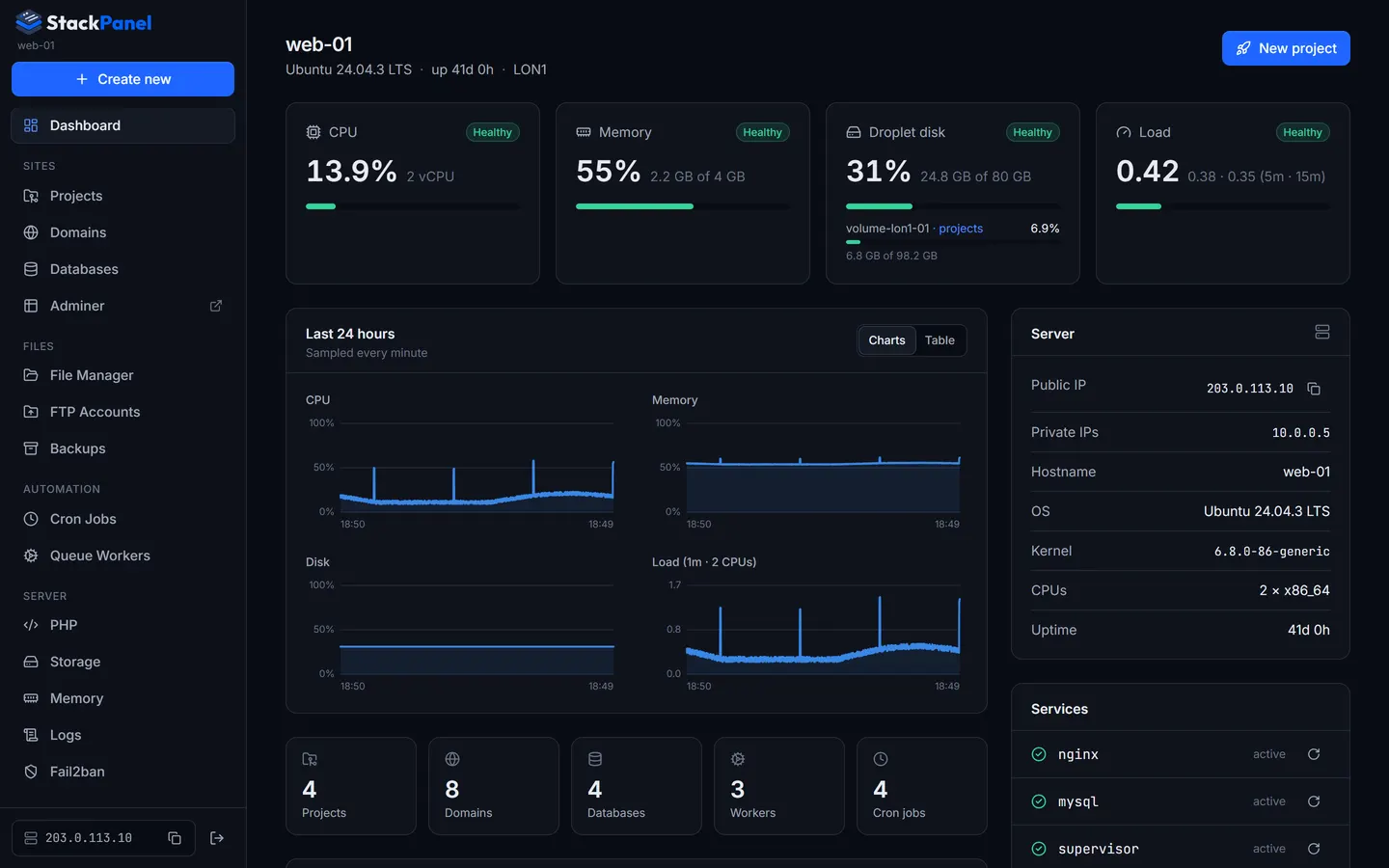
Open the URL. You land on the dashboard showing live server stats.
Already have a provisioned host?
If nginx, PHP-FPM, MySQL, certbot and Supervisor are already installed the way the script would set them up, you can start the panel by hand:
$ cd /opt/server-manager
$ cp .env.example .env && chmod 600 .env
$ nano .env            # set SM_ADMIN_EMAIL, SM_ADMIN_PASSWORD, SM_MYSQL_PASSWORD …
$ docker compose up -d --build
The MySQL account in SM_MYSQL_USER needs ALL PRIVILEGES ON *.* WITH GRANT OPTION so it can create databases and users. Re-running provision.sh later is safe: it keeps existing passwords and the .env.
First sign-in checklist
- Settings → Let's Encrypt: confirm the contact email. Certificates can't be issued without it.
- Account → Two-factor authentication (your name, in the sidebar's Panel section): scan the QR code with your authenticator app and confirm a code.
- Users → Add user for each teammate, so nobody else needs the main administrator login. They must set up 2FA on first sign-in.
- Settings → Panel domain (optional but recommended), e.g.
panel.example.comwith SSL. See Panel domain & HTTPS. - Check the Dashboard → Services card: nginx, mysql, supervisor, cron and each
phpX.Y-fpmshould be active. - Create your first project with Create new → Project. Projects covers each step.